Saucy Tools
Grocery List Generator
Paste recipe ingredients or bring them from a Saucy meal plan, remove pantry items and organize the remainder into a printable shopping checklist.
- No account required
- Private browser-based inputs
- Designed for phone and desktop
The tool keeps quantity text when supplied, removes matching pantry items, combines identical normalized lines and groups recognizable foods into practical store sections.
Tell us what you need
Required fields are marked. You can change the results whenever you like.
Your results will appear here
Complete the choices above and run the tool. Pantry, plan, and grocery contents stay in this browser. If you separately allow statistics, only aggregate interaction events are sent.
A grocery-list example from two recipes
Combined grocery-list preview
This excerpt uses one original batch of each of these two recipes:
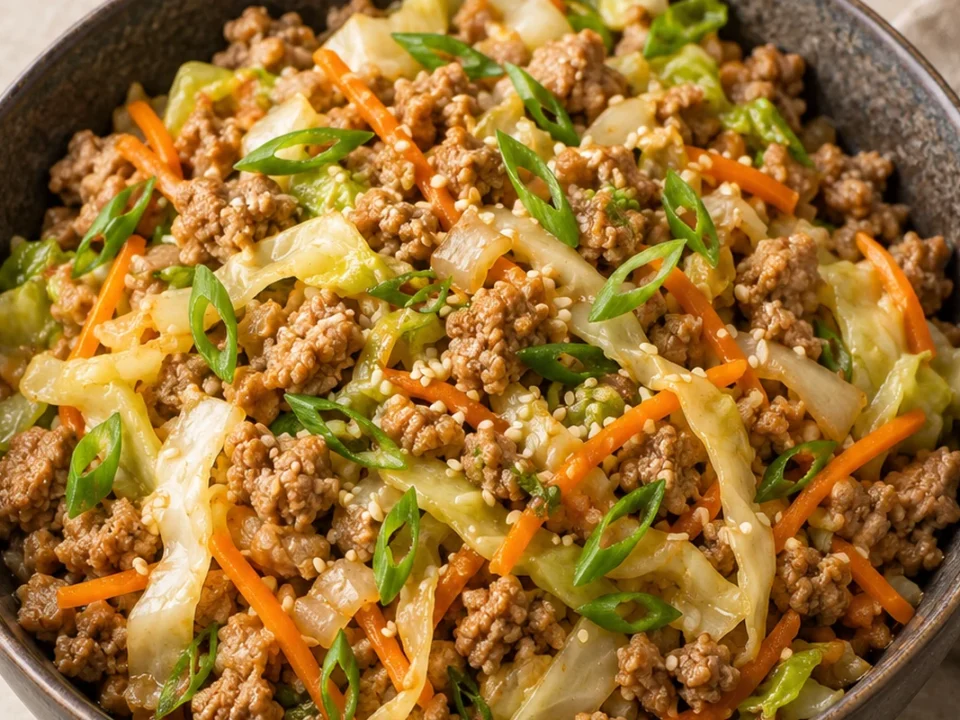
- Hot Honey Ground Beef Bowl — published yield: 4 bowls
- Easy Taco Soup with Ground Beef and Beans — published yield: 6 servings (estimated)
- 2 sweet potatoes
- 1 tbsp olive oil
- ½ tsp kosher salt
- 1 lb lean ground beef
- 3 tsp ground cumin
- 1 tsp chili powder
- ½ tsp garlic powder
- ½ cup water
Showing 8 of 31 grouped lines. This is not the complete shopping list for the sample week. Matching foods with the same unit and preparation form are combined; uncertain amounts and alternatives need review. Open the recipes for package sizes, seasonings and optional ingredients, adjust servings, and remove pantry items before shopping.
Method and guidance
Use this tool with confidence
The tool keeps quantity text when supplied, removes matching pantry items, combines identical normalized lines and groups recognizable foods into practical store sections.
How ingredients become a list
Each non-empty line is normalized, compared with your pantry list and assigned to a store section using a transparent food keyword map. Produce, meat and seafood, dairy, bakery, frozen foods, spices and sauces, pantry goods and uncategorized items remain separate. Quantities are added only for matching ingredient wording and the same unit. Preparation differences, mixed units and uncertain amounts stay separate. Transfers are added to the saved list once; you can add custom items, remove items, clear purchased items, or download the checklist.
Prepare clean input
Paste one ingredient per line and keep the quantity with the ingredient. Remove recipe headings before generating. Pantry items can be shorter—“salt, olive oil, flour”—because they act as exclusion terms. Review the Other section carefully; unusual brands and prepared ingredients may not match a store category. The checklist is an organizing aid, not inventory or price data.
Use the list while shopping
Check items as you shop, copy the plain-text version into a notes app, or print the focused list. A transferred list from the ingredient finder or meal planner opens here automatically. Checked state is stored locally for convenience. If you share the text, quantities and recipe context remain your responsibility, especially when cooking for allergies or a larger group.
From a recipe choice to a grocery list
Choose a recipe that fits your ingredients and schedule. Open the complete recipe, check the published yield, then use its meal-planning or shopping link. Adjust servings before building the final list, and review uncertain quantities and pantry items before shopping.
Review before you rely on a result
Use the shortlist as a decision aid, then check the complete recipe before cooking. Confirm the yield for your household, read every ingredient label when allergies or dietary needs matter, and follow the published temperature and storage directions. The tools compare words and saved recipe details; they cannot inspect food freshness, guarantee a dietary classification, calculate nutrition, or know current shop prices. If a result feels too broad, change one preference at a time and run it again. This keeps the recommendation understandable and makes it easier to see why a recipe appeared.
Grocery List Generator FAQs
How should I paste ingredients?
Put one ingredient on each line. Quantities can stay in the line, for example “2 cups spinach” or “1 pound chicken breast.”
Does the tool combine quantities?
It combines identical normalized lines. It does not add unlike measurements or guess conversions, because doing so could produce an incorrect shopping amount.
How are pantry items removed?
Enter foods you already own as comma-separated or line-separated items. Matching ingredient names are omitted while the generated list remains in this browser.
Can I print or copy the list?
Yes. The generated checklist has copy and print controls. Checkmarks are also retained locally for the current list.